


VERIFY YOUR CALLER ID
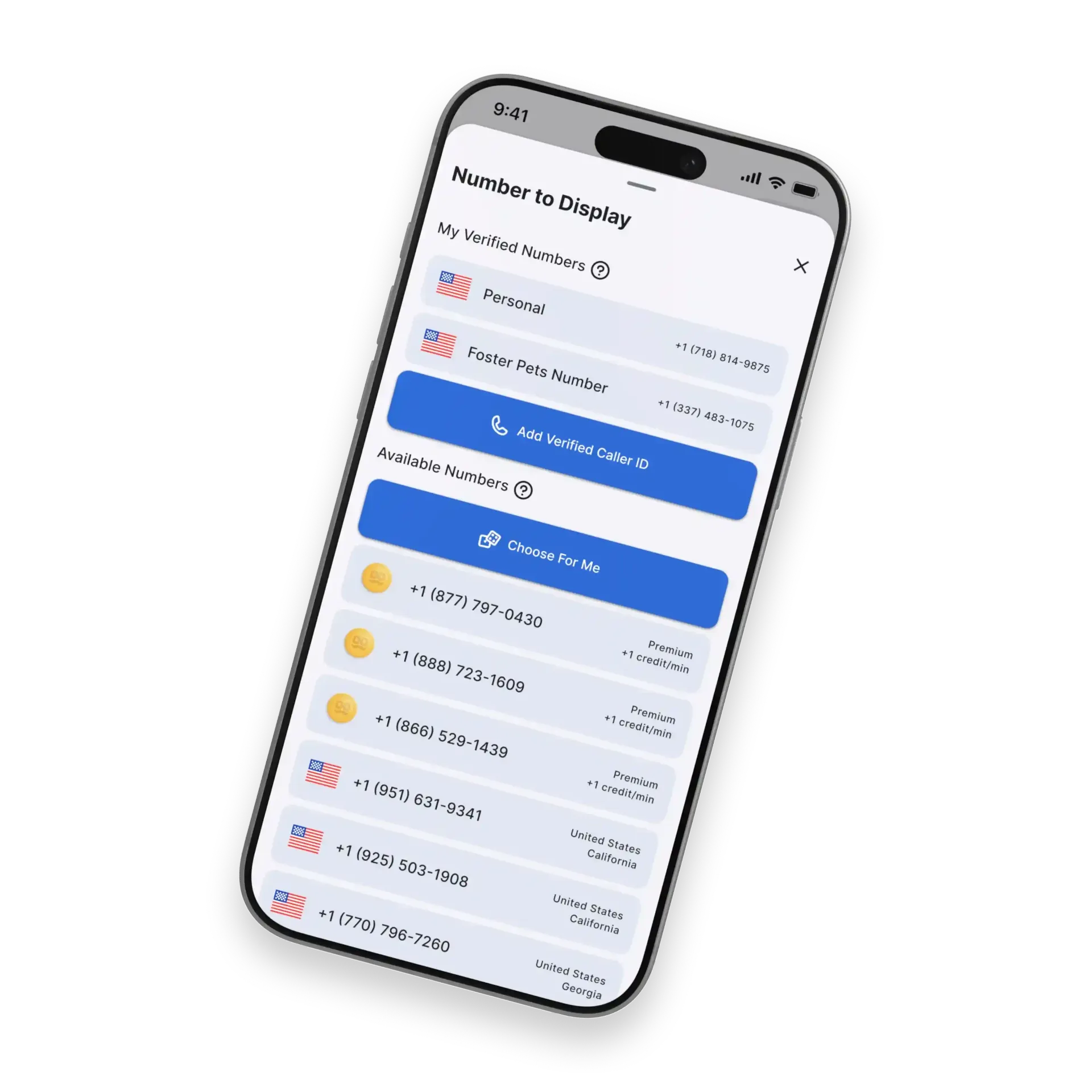
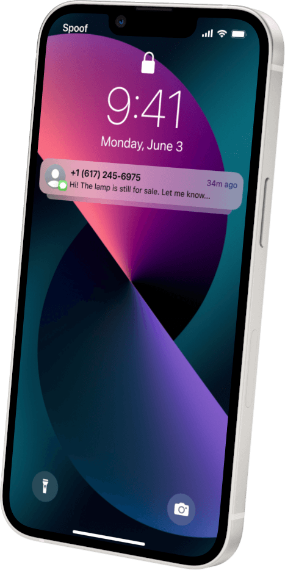
Take control of how you appear on every call with caller ID verification. Choose from a list of trusted numbers or add your own to match your needs. Build confidence with every interaction by displaying a number people recognize and trust. Improve answer rates while keeping your communications consistent and professional. All with a simple setup designed to keep you in control from start to finish.
GET THE CONVERSATION STARTED
Take control of how you appear on every call with caller ID verification. Choose from a list of trusted numbers or add your own to match your needs. Build confidence with every interaction by displaying a number people recognize and trust. Improve answer rates while keeping your communications consistent and professional. All with a simple setup designed to keep you in control from start to finish.
How To Verify a Caller ID
To verify/add a caller ID, please use the following:
On SpoofCard.com:
- Log in and navigate to Settings.
- In the Account tab, locate the Add Verified Caller ID section on the right.
- Click Add to begin the verification process.
- Follow the on-screen prompts to complete the verification.
- If you are unable to receive the verification code via SMS, select Call Me to receive the code through a phone call.
On the SpoofCard mobile apps:
- Open the app and go to Settings.
- Tap Account.
- Select Add Verified Caller ID.
- Follow the on-screen prompts to complete the verification.
- If you cannot receive the code via SMS, choose Call Me to receive it by phone call.
Verifying Virtual Numbers (VOIPs) As Caller IDs
Virtual numbers, such as VOIPs (Voice Over Internet Protocol) will not work as the MAIN verified number or "log-in credential" on your account. All SpoofCard accounts must verify their accounts with a regular, carrier-provided phone number.
However, you can verify virtual numbers as Caller IDs. To add a caller ID on the website or mobile app, please use the following instructions:
- Navigate to the "Settings" tab.
- Once here, select "Account".
- Then Select "Add Verified Caller ID".
- Enter the new phone number.
- Choose "Text Me" or "Call Me" to receive your verification code.
- Enter the code. If complete, you have successfully added a new Caller ID.